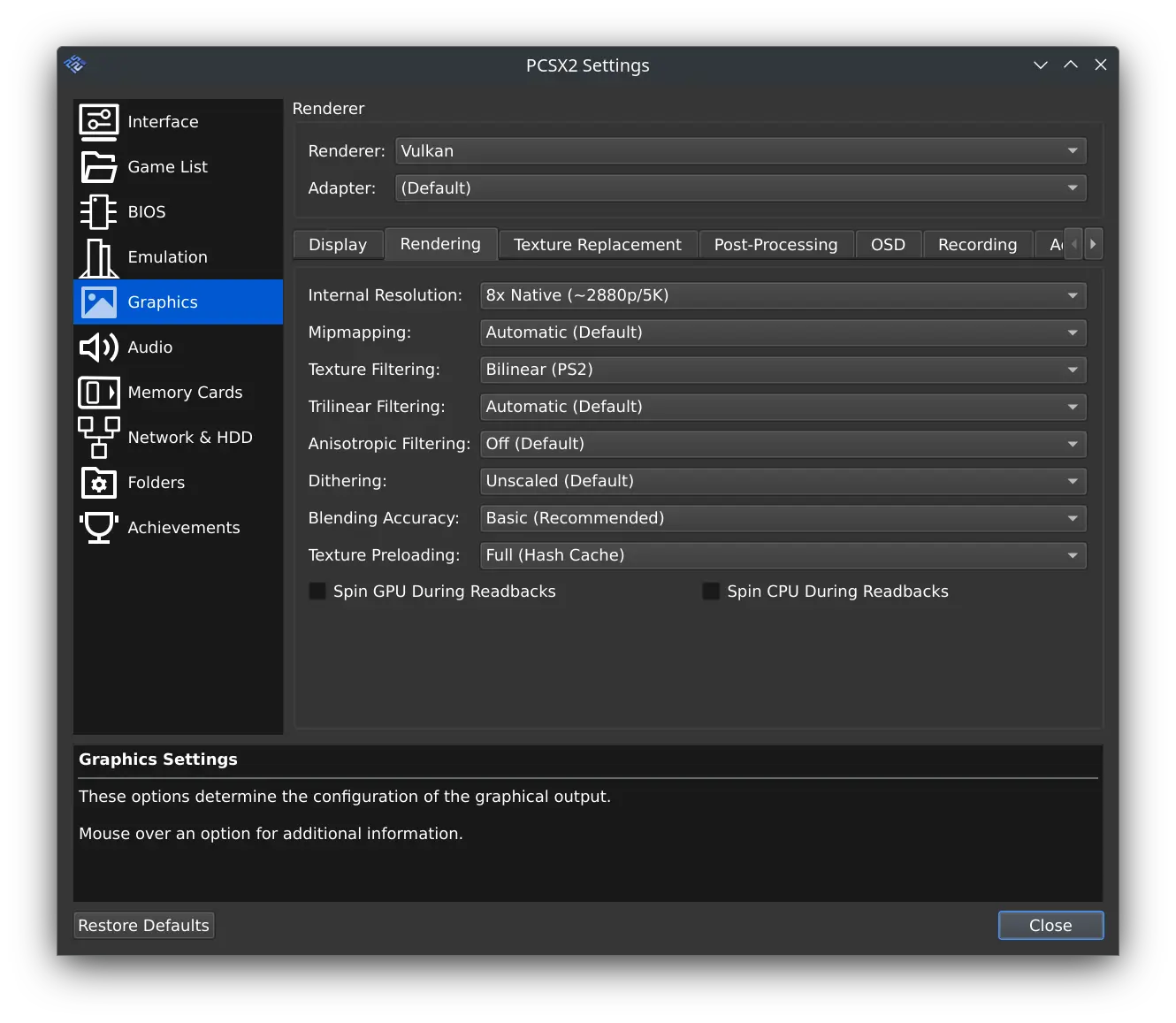
The best PCSX2 graphics setting in 2026 is usually Automatic—not the API with the biggest reputation online. The PlayStation 2 emulator now has mature Vulkan, Direct3D and software rendering options, but the correct choice depends on your graphics driver, the particular game and whether your problem is speed or visual accuracy. Start with defaults, confirm the game works, then change one option at a time.
This guide uses the official PCSX2 graphics configuration documentation, the performance troubleshooting guide and the PCSX2 2.8 release notes. It is a practical set of starting points, not a claim that GameLogNews independently benchmarked every PS2 title or GPU.
Which PCSX2 graphics API should you use?
Open Settings → Graphics and look for the renderer. The official docs explicitly recommend leaving this on Automatic if you are unsure: PCSX2 selects an API for your operating system and graphics hardware, prioritizing stability and accuracy.
| Renderer | When it makes sense | Important limitation |
|---|---|---|
| Automatic | Best first choice for almost everyone | The selected API can differ by PC |
| Vulkan | A strong manual option with current GPU drivers | The project warns of instability on some Intel integrated GPUs |
| Direct3D 12 | Windows fallback or a comparison when troubleshooting | The official documentation notes accuracy limits for some blending effects |
| OpenGL | Compatibility testing when the preferred backend has issues | Can be slower than Vulkan, especially on AMD hardware |
| Software | Diagnosing graphics glitches and checking accurate rendering | Uses CPU rendering and can be much slower |
Don't interpret this table as a universal performance ranking. A game with complicated effects may behave differently from a simple platformer. If Automatic works without glitches, there is little reason to override it just because a video says 'always use Vulkan.'
Vulkan vs Direct3D 12: the practical decision
On a current NVIDIA or AMD card, Vulkan is worth comparing against Automatic when investigating a specific issue. Keep drivers current. If you observe missing effects, incorrect blending or severe stutter, switch the API and retest the same scene.
The official documentation describes Vulkan as a fully featured, accurate backend while warning that Direct3D 12 cannot emulate certain blending effects. This is a fidelity trade-off, not proof that one renderer will always achieve more frames per second.
Best PCSX2 internal resolution for 1080p and 4K
Internal resolution determines how many pixels PCSX2 uses to render 3D graphics. It does not create higher-resolution textures from nothing, and it doesn't magically improve every 2D element.
A helpful starting approach is:
- 1× Native when validating a game, troubleshooting severe slowdowns or running on modest hardware.
- 3× Native as a reasonable 1080p-class starting point on suitable hardware. The official requirements tie their recommended GPU class to approximately this workload.
- 6× Native as an approximate 4K-class experiment for powerful GPUs, provided the specific game still runs at full speed.
Increasing internal resolution raises GPU work. If your game was already slow at 1×, pushing it to 6× will not fix the problem. Conversely, if increasing resolution causes performance to collapse, you've found a useful clue that the GPU rendering load matters.
The official requirements and recommendations emphasize that demanding games need substantially more horsepower at higher resolution. They are guidance rather than a frame-rate guarantee.
How to diagnose PCSX2 slowdowns instead of guessing
Start with the on-screen display (OSD). The PCSX2 team recommends turning on the performance counters in Settings → Graphics → OSD when investigating speed problems. Record what happens in the same area of the same game, first at default settings and again after each individual change.
A useful five-step test
- Update PCSX2 from the official site and make sure your graphics driver is current.
- Restore graphics defaults and set the renderer to Automatic.
- Test at 1× Native and note any slowdowns, glitches or audio distortion.
- Raise the resolution to 3× only if the initial test is satisfactory.
- If a problem appears, revert that last change; if it persists at 1×, inspect the OSD counters and try another renderer before changing a dozen other options.
This process is slower than copying a random preset, but it tells you which setting actually caused the change. PCSX2's own performance troubleshooting page asks users reporting issues to provide those counters for a reason.
Why a powerful PC can still struggle with a PS2 game
Emulation does not simply redraw the output of an old console. The host PC must reproduce the behavior and timing of the original hardware closely enough for each game to function. Some effects and unusual game engines are demanding even on relatively recent machines.
A strong graphics card helps with high internal resolutions, but it cannot eliminate every CPU-side emulation bottleneck. Nor is a display showing a high refresh rate evidence that a PS2 game is running at that same simulation speed.
If one game is problematic, consult the PCSX2 compatibility notes and game-specific settings before applying a global workaround. A renderer or accuracy change that helps one title may introduce an artifact in another.
Stable or Nightly PCSX2: which version is better?
PCSX2 provides Stable and Nightly builds. Stable is a sensible choice when you want fewer changes and a predictable setup. Nightly is updated more frequently and can include fixes earlier, but it also carries a higher risk of regressions.
The official download and running guide explains these differences, including Windows installer and portable options. PCSX2 2.8.0 arrived on August 28, 2026, bringing interface and rendering changes; check the release announcement for version-specific details rather than assuming a tutorial from several years ago still matches today's menus.
BIOS and game files: what you actually need
PCSX2 does not ship Sony's PS2 BIOS. Its official instructions require BIOS files dumped from your own console, and the project documents ways to make those dumps. See the official BIOS guide and disc dumping guide for the appropriate process.
Do not download random 'PCSX2 + BIOS + 10,000 games' packages from unfamiliar sites. Apart from copyright questions that vary by jurisdiction, untrusted bundles are a security risk. The official PCSX2 documentation warns that the emulator is not a security sandbox.
Our recommended baseline
For a first setup, use Automatic renderer, default emulation settings and 1× Native to test the game. Move to 3× Native when the title works comfortably, and only then experiment with Vulkan or higher resolutions if you have a reason. When image accuracy is the issue, compare against software rendering rather than treating performance as the only metric.
The best PCSX2 configuration isn't the flashiest screenshot. It's the one that keeps your actual PS2 game stable, faithful and enjoyable on the PC you have.
Source date: August 28, 2026